
Open Quickly for Documentation
Most Xcode users are familiar with Shift+Cmd+O – the “Open Quickly” shortcut that lets you jump to any file, symbol, or type in your project. It is one of those shortcuts that becomes second nature within days of using Xcode. What I did not realize until recently is that the same shortcut now works on the Apple Developer documentation website, powered by DocC.
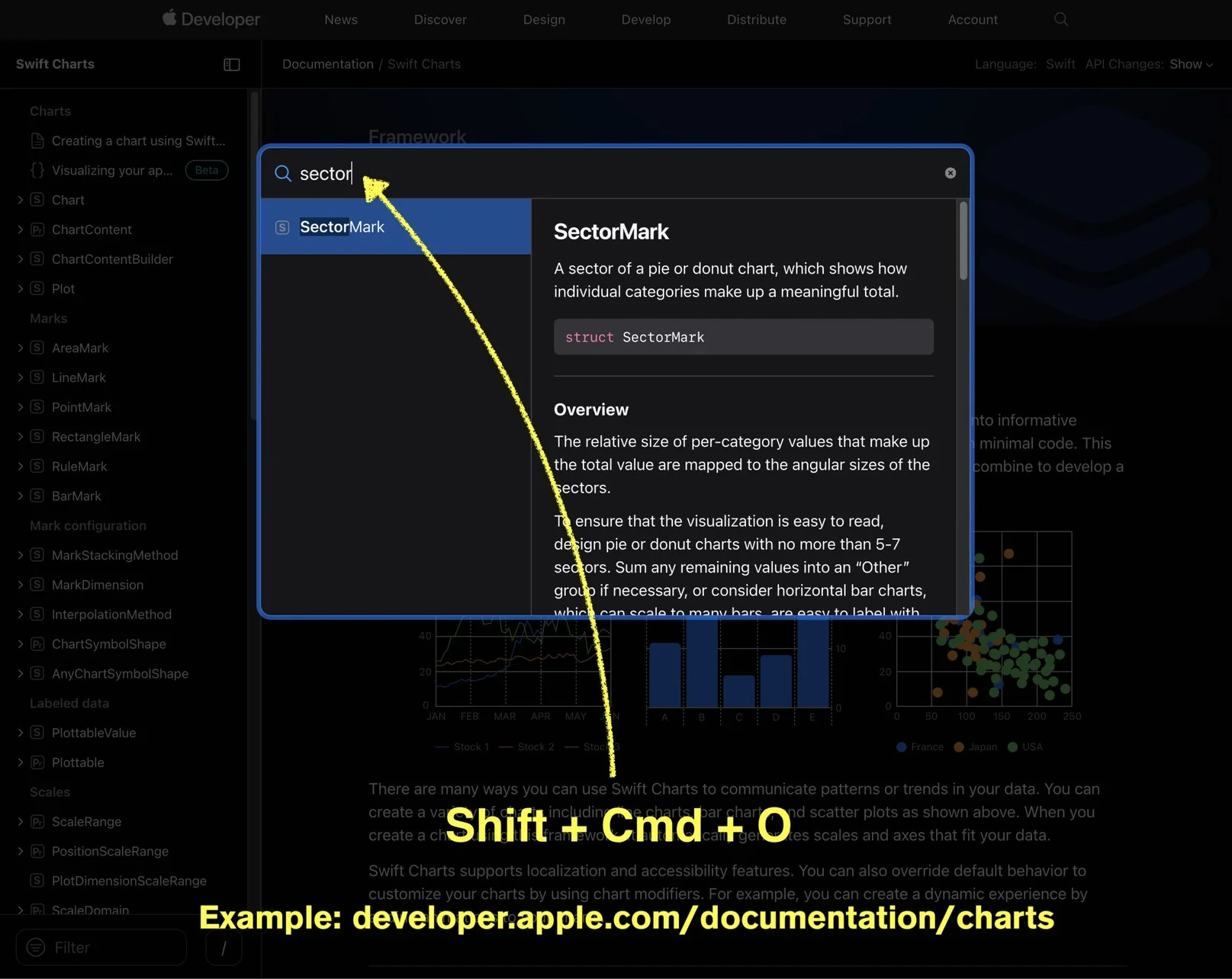
When browsing developer.apple.com/documentation, pressing Shift+Cmd+O opens a search overlay that behaves just like Xcode’s Open Quickly dialog. You can type a framework name, a class, a method, or even a partial match, and results appear instantly. Selecting a result navigates directly to that documentation page.
Why This Matters
Before this feature, searching Apple’s documentation meant scrolling through the sidebar hierarchy or using the general search bar, which often returned a mix of articles, tutorials, and API references. The Open Quickly overlay filters results to API symbols and pages, making it far more precise.
This is especially useful when you are in a browser reading a WWDC article or forum thread and need to quickly check the signature of a related API. Instead of switching back to Xcode, you stay in context and look it up directly.
The feature is part of Apple’s broader investment in DocC as a documentation platform. Since DocC powers both Xcode’s documentation viewer and the web-based documentation, it makes sense that the same interaction patterns carry over. If you spend time reading Apple docs in the browser, building this shortcut into your muscle memory is worth the effort.