
Expanding Code to Multiple Lines
Xcode 15 introduced a small but impactful editing shortcut: Ctrl+M. Place your cursor on a function call, initializer, or any comma-separated parameter list, press Ctrl+M, and Xcode automatically expands it across multiple lines – one parameter per line, properly indented.
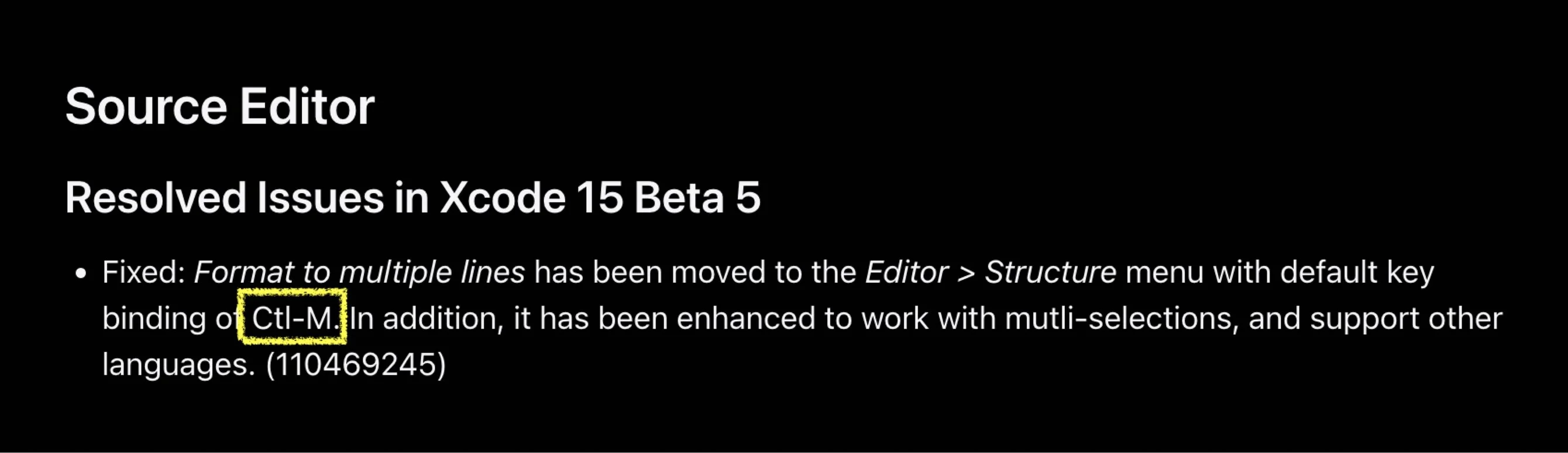
Before this shortcut, reformatting a long function call meant manually adding line breaks and fixing indentation. Consider a call like this:
let label = UILabel(frame: .zero, font: .systemFont(ofSize: 14), textColor: .label, numberOfLines: 0)After pressing Ctrl+M with the cursor on that line, Xcode reformats it to:
let label = UILabel(
   frame: .zero,
   font: .systemFont(ofSize: 14),
   textColor: .label,
   numberOfLines: 0
)
When to Use It
This shortcut is most valuable when you are writing SwiftUI view modifiers or initializers that accumulate parameters over time. A view that starts with two parameters often grows to five or six as you add configuration. Rather than reformatting manually each time, Ctrl+M handles it in one keystroke.
It also works in reverse – if your parameters are already on separate lines, pressing Ctrl+M collapses them back into a single line. This toggle behavior makes it easy to switch between compact and expanded formats depending on readability needs.
One thing to note: the shortcut operates on the innermost parameter list at the cursor position. If you have nested function calls, position your cursor carefully to expand the right one.